


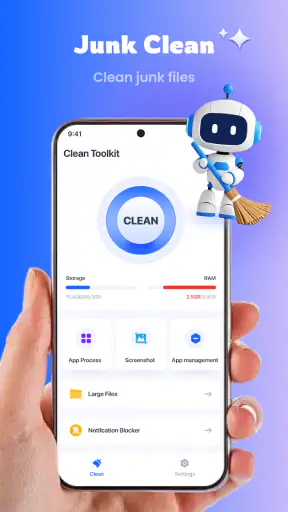

Cleaning a phone sounds simple until an app removes something you still needed, a scan appears stuck, or storage barely changes after a tidy-up. I approached Clean Toolkit with that practical concern in mind. It is a free Android tools app from StarsStars Vision, presented as an all-around phone cleaning utility rather than a single-purpose file browser. My view is that it can be useful for people who want one place to start organizing a crowded device, but it works best when you treat every suggested cleanup as a decision rather than an automatic command.
The app sits in a busy category. Android already includes storage controls, file-management tools and, on many phones, manufacturer utilities that remove temporary material. Clean Toolkit therefore needs to earn its place by making the process easier to understand and quicker to repeat. Its current version is 1.0.23, it runs on Android 6.0 and later, and its Everyone age rating makes it approachable for a broad audience. The public response is also encouraging without being a guarantee: it holds a 4.1 average from around 5.5 thousand ratings, with more than a million installs.
Where the cleaning process usually gets stuck
The first difficulty is not always the scan itself. It is knowing what the app is actually asking you to review. A phone can contain harmless temporary files, duplicate-looking images, old downloads, large videos and application data that appears disposable but may affect how an app behaves. Those groups should not be treated as interchangeable. A sensible cleaning tool should help you pause and inspect, and you should use that pause even when the interface makes the process feel routine.
I would be especially careful with anything connected to messaging, camera backups or offline content. A file can look like a duplicate because it has a similar name while still being the version you want to keep. The same applies to downloaded maps, saved documents and videos stored for travel. If Clean Toolkit highlights a group that you recognize, open your phone's normal gallery or file manager first and confirm that an important copy exists elsewhere before removing anything.
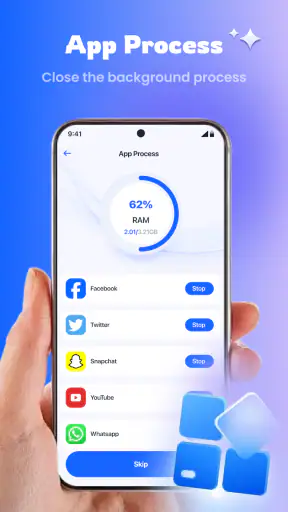
Another common sticking point is a scan that seems to take too long. That does not automatically mean the app has failed. A device with many pictures, videos or downloads needs more material to examine, and Android may limit what a third-party tool can inspect. Leaving the app, locking the phone or running several demanding tasks at once can also interrupt the experience. My practical advice is to keep the screen active during the first scan, close unrelated apps and give the process a little time before trying again.
There is also a difference between freeing space and making a phone feel faster. Removing unnecessary files can help when storage is genuinely tight, but it will not repair a worn battery, a weak network connection or an application that is crashing because of a software bug. If you expect a cleaner to solve every performance problem, the results will feel disappointing. I see this app as a housekeeping tool, not a complete diagnosis for the phone.
What to check before pressing a cleanup button
Before using a broad cleanup action, I recommend checking the categories one by one. Start with material you created or downloaded yourself, because that is easiest to recognize. Then look at files that are clearly disposable. Leave anything whose purpose is unclear until you can identify it through the phone's regular storage view. This slower approach is less dramatic than tapping a single large button, but it greatly reduces the chance of deleting something you later need.
A useful habit is to note which location is actually full. Android's storage screen can show whether the problem is photos, videos, applications, system data or downloaded files. If the largest area is application storage, a general cleaning pass may not produce the change you want. You may need to remove an app you no longer use, move personal media, or clear material from a specific application through its own settings. Clean Toolkit can be a starting point, but the system storage screen remains the better authority for understanding the overall picture.
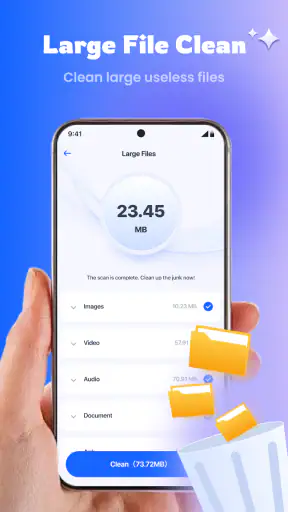
Do not judge the app only by the number of items it presents. A long list may contain many tiny files, while one forgotten video could account for more space than the entire list. I find the most effective workflow is to look for large personal files first, then deal with obvious clutter. This is one of the less obvious trade-offs of phone-cleaning apps: a tidy-looking result is not necessarily the same as a meaningful amount of recovered space.
Setup checks that prevent unnecessary frustration
Because Clean Toolkit is a third-party Android utility, the first launch deserves a careful look. Read each system request before accepting it and consider whether it makes sense for the task you want to perform. A cleaning app may need broad access to identify files, but that does not mean you should approve every prompt without reading. If a request is unclear, pause and inspect the wording in Android's settings rather than guessing.
Keep enough free space for Android to work normally while you set the app up. A phone that is almost completely full may behave poorly before any cleaner has a chance to help. Close a video editor, camera session or large download first, then restart the cleaning attempt. This is a simple check, but it separates a problem caused by a stressed device from a problem caused by the utility.
I also suggest installing the app only through the official Android store and keeping the operating system in its normal supported state. Clean Toolkit is free, which removes a purchase barrier, but free does not mean every action should be automatic. Watch for screens that summarize what will be removed, and prefer a review step whenever one is available. If you share the phone with family members, make sure everyone understands that a cleanup can affect locally stored files even when the intention is only to reclaim space.
After setup, run a small, controlled cleanup rather than trying to empty the device in one session. Choose a category you understand, review the result, and then check the phone's storage screen. This gives you a baseline for how the tool behaves on your device. It also makes it easier to identify whether a later issue came from the cleanup or was already present.
Recovering when a scan or cleanup does not behave as expected
If a scan stops responding, I would first leave the screen alone for a short period, then close and reopen the app if nothing changes. A restart of the phone is the next sensible step. These are ordinary troubleshooting actions, but they matter because Android can temporarily restrict an app that has been left in the background or is competing for memory with another demanding process.
If the app opens but the reported storage does not appear to change, check the system storage screen rather than repeating the same cleanup immediately. Storage figures can take time to refresh, and some removed material may be represented differently after Android recalculates categories. If the system still shows the same large area, inspect the biggest folders manually. The remaining space may be occupied by application data, media, or system-managed files that a general cleaner cannot safely remove.
When a particular application starts acting strangely after cleanup, do not assume that reinstalling Clean Toolkit will fix it. Open the affected application's own settings and check its downloads, offline files and cache controls. Some apps rebuild temporary content on their next launch, while others need their saved material left intact. If the problem affects only one app, troubleshoot that app first and avoid running another broad cleanup until you understand the connection.
A useful recovery workflow is to change one thing at a time. Do not clear several categories, uninstall applications and restart the phone all at once. Make a note of what you reviewed, perform one action, then test the phone. This takes longer, but it gives you a clear trail if a photo disappears from a gallery, an offline file needs downloading again, or an app signs you out. That kind of controlled testing is more valuable than chasing a large headline number in a cleaning result.
When the cleaner is not the real cause
Many complaints that sound like cleaning problems are actually caused by storage pressure returning immediately. Messaging apps can receive new media, browsers can rebuild temporary files, and photo applications can continue creating local copies. If the phone becomes full again soon after a cleanup, look at which app is growing rather than repeatedly deleting general clutter. A targeted solution is usually safer and more lasting.
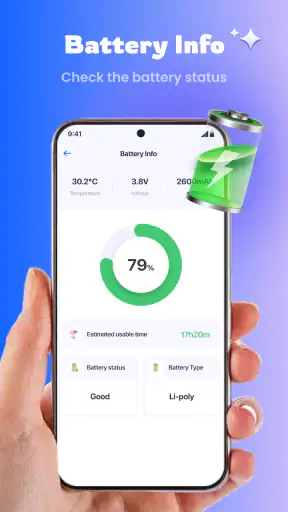
Slow performance can also come from an old operating system, a battery that no longer holds charge well, excessive background activity or a single unstable app. Clean Toolkit cannot replace those checks. If the phone is hot, restarting unexpectedly or losing battery unusually quickly, I would investigate the device's battery and system settings before using a cleaner. If the issue is a poor connection, cleaning files will not improve the signal. This distinction is important because cleaning utilities are easy to blame when the symptom is simply broader than storage.
There are situations where the built-in Android tools are the better choice. They are already part of the operating system and can show storage usage in a way that is closely tied to the device. A manufacturer's own utility may also understand its phone's folders more deeply. On the other hand, Clean Toolkit may appeal to someone who wants a dedicated cleaning workflow instead of navigating several system screens. The right choice depends on whether convenience is worth adding another tool to a task Android can already perform.
I would skip this app if you want complete control over every file, need a detailed folder-management system, or regularly handle sensitive work documents that require a carefully audited process. A specialist file manager is more appropriate for that audience. I would also avoid relying on any cleaner as an automatic maintenance routine if you rarely review what it selects. For a cautious user who wants guided housekeeping, it is more reasonable; for an expert user who already knows the file system, it may feel unnecessary.
Everyday workflow: cleaning before a trip
One realistic use is preparing a phone before travel. I might first check the system storage screen, then use Clean Toolkit to look for obvious clutter while leaving maps, tickets, camera folders and downloaded documents alone. After reviewing the candidates, I would remove only items I can identify, restart the phone, and confirm that the travel material still opens offline. This workflow uses the app as a search assistant while keeping the important decisions in my hands.
The same approach works before recording a long event or installing a large application. Instead of clearing everything, identify what can be replaced or moved, preserve the files that are difficult to recreate, and verify the result afterward. The non-obvious benefit is not just recovered space; it is reducing uncertainty before an important moment. The non-obvious cost is that this takes more attention than the promotional idea of one-tap cleaning suggests.
Who will get the most from Clean Toolkit?
I think the app is best suited to Android users who are uncomfortable sorting storage manually, regularly accumulate downloads, or want a dedicated place to begin a cleanup. It is also a reasonable option for someone helping a less technical family member, provided the review step is explained clearly. The free price makes experimenting easy, and the Everyone rating keeps the audience broad.
Its audience should still understand that a cleaner is not magic. The strongest results come from combining the app with Android's storage overview, the settings of the largest applications and a simple habit of reviewing large personal files. If you only tap the broadest action and never inspect the choices, the convenience can become a liability. If you use it selectively, it can turn a vague “my phone is full” problem into a manageable checklist.
My practical verdict after weighing convenience against control
Clean Toolkit is most useful as a guided first pass, not as permission to delete without thinking. StarsStars Vision has positioned it in a familiar tools category, and its current 1.0.23 release is accessible to phones running Android 6.0 or newer. The combination of a free entry point and a sizeable installed audience makes it easy to try, while the 4.1 average suggests that many users find value in the basic idea.
My recommendation is conditional but positive. Use it when you want help locating ordinary clutter and are willing to inspect the results. Keep Android's own storage controls nearby, protect personal media and treat unclear categories as off-limits until you understand them. If your real problem is battery health, network quality, application instability or a need for precise file control, choose the relevant built-in or specialist tool instead.
In short, I would recommend Clean Toolkit to a friend who wants a simple cleaning companion and is prepared to make the final decisions. I would not recommend handing it complete control over a phone full of irreplaceable photos and documents. Used carefully, it can make routine storage housekeeping less intimidating; used blindly, it cannot tell you which memories matter more than a few extra megabytes.


